

Graphic options
Players can access various sections to modify graphics settings, aiming for optimal performance and visual quality that suits their computer.
Basic section
Preset
Quickly switch between graphics presets that optimize for your system.
Low-End: All graphics settings are either disabled or set to the lowest quality.
Low: Some graphics settings are disabled or set to low quality.
Medium: Most graphics settings are enabled, with some set to medium quality.
High: All graphics settings are enabled, providing the best quality at the cost of performance.
Resolution
Change game resolution
Window mode
Windowed
Fullscreen
Press Alt + Enter to switch between these 2 modes at anytime
Vsync
Disabled: Good for low end PC.
Enabled: Prevent screen tearing when the FPS exceeds the monitor's refresh rate
Render section
Render quality
Fast: Lowers the quality of texture rendering, lighting calculations, and overall visual output to prioritize performance.
Standard: Uses the system's default rendering quality to achieve the best visual results.
Render scale
Adjust the Render Resolution Scale (50%/75%/100%/150%/200%). A higher value delivers superior render quality at the cost of performance, whereas a lower value results in a more pixelated visual but significantly faster rendering.
Reflection
Configures the rendering of environmental reflection effects on materials.
Disabled: Deactivates Screen Space Reflection (SSR) and environment map reflections.
Low: Disables SSR, relying solely on environment map reflections.
High: Enables both Screen Space Reflection (SSR) and environment map reflections.
Water reflection
Configures the quality of environmental reflections on water surfaces.
Disabled: Water surfaces will not display any environmental reflections.
Low: Water surfaces reflect the environment with low quality. Shadow reflections are disabled.
Medium: Water surfaces reflect the environment with improved quality. Shadow reflections remain disabled.
High: Water surfaces display the highest quality environmental reflections, including shadows.
Anti Alias
Configures the method used to smooth jagged edges in rendered images.
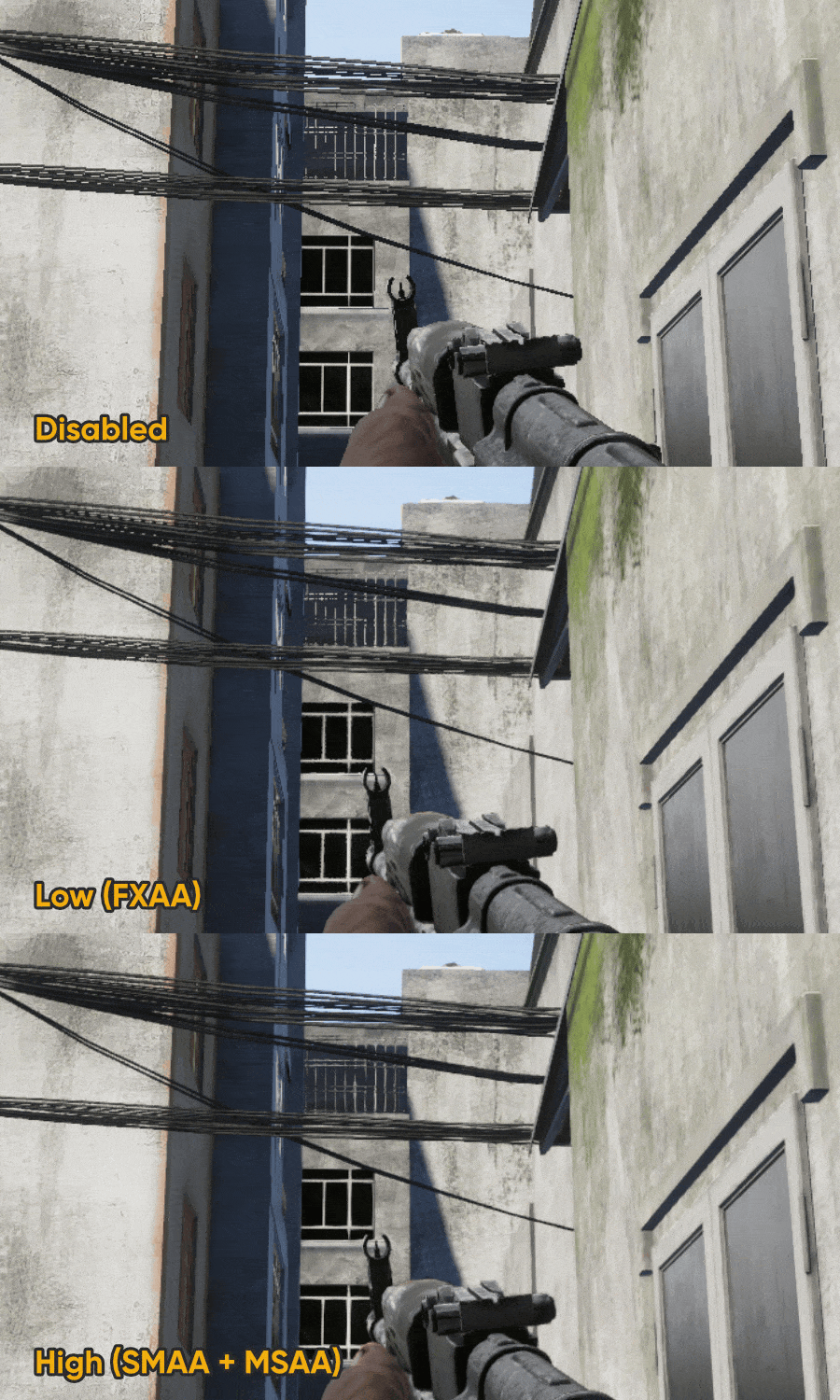
Disabled: No anti-aliasing is applied, resulting in prominent jagged edges (aliasing) on objects.
Low: Employs FXAA (Fast Approximate Anti-aliasing) to smooth edges.
High: Utilizes SMAA (Subpixel Morphological Anti-aliasing) combined with Multisampling for enhanced edge smoothing.
Temporal Anti Alias (TAA)
An advanced anti-aliasing method that uses information from previous frames to smooth jagged edges and reduce shimmering.
Disabled: Disables Temporal Anti-Aliasing. Edges may appear jagged or "shimmer" without this method, especially noticeable during motion.
Enabled: Activates Temporal Anti-Aliasing (TAA). This provides superior edge smoothing and significantly reduces shimmering, particularly during motion. However, due to its temporal nature, it may introduce a slight blur or "ghosting" effect on fast-moving objects and can sometimes result in an overall softer image.
Below is an illustration of TAA combined with each Anti-aliasing option.
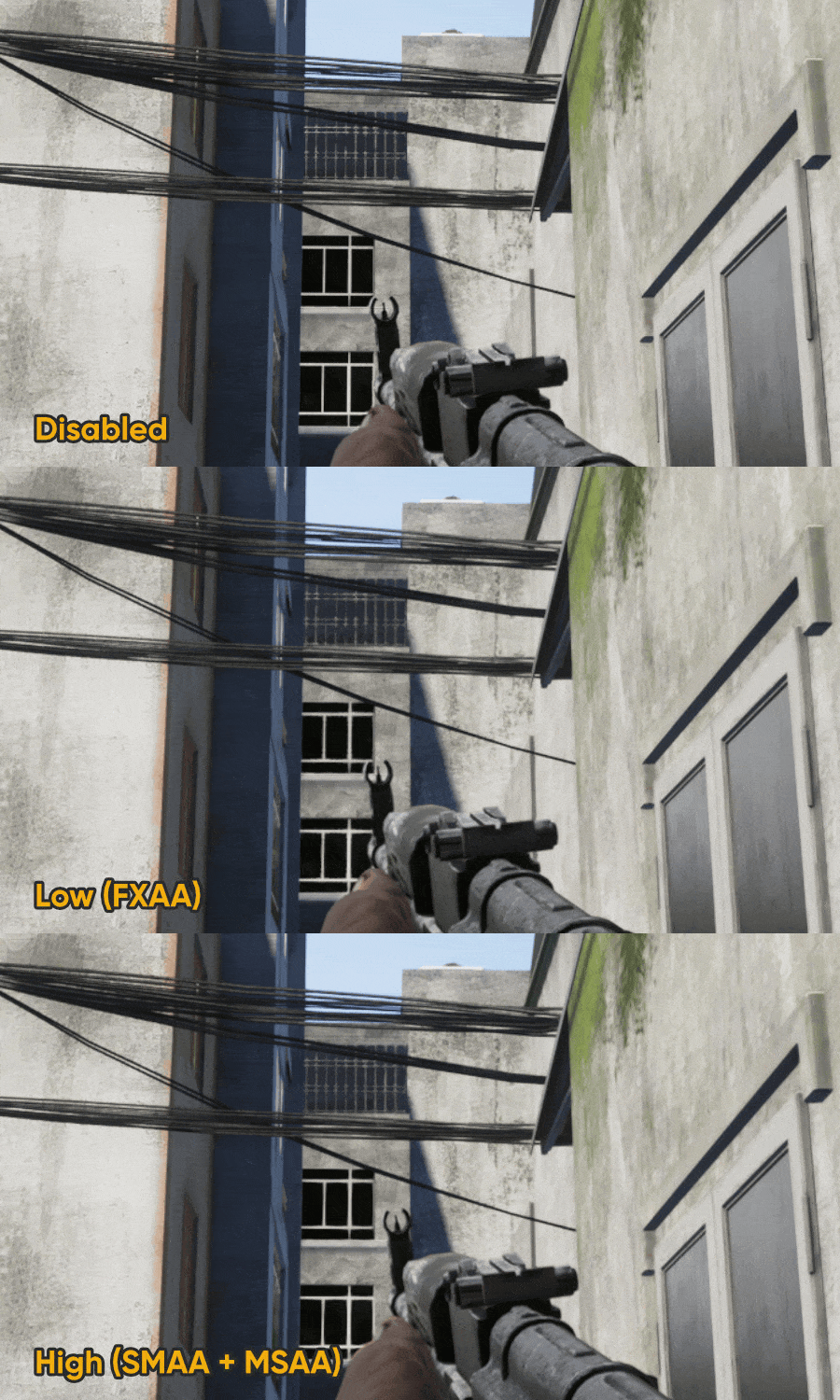
Because TAA can introduce blur or 'ghosting' artifacts, this setting is a fully independent option. Players can toggle it on or off based on their personal visual preference, separate from any graphics presets.
Texture quality
Adjusts the visual fidelity and detail of surfaces and objects within the game world. Higher settings require more VRAM.
Extreme Low: Materials are rendered with minimal detail, often appearing as flat color patches. Offers significant memory savings.
Low: Provides basic texture and material detail.
Medium: Increases material and texture resolution for enhanced visual fidelity.
High: Renders materials with the highest available detail and texture resolution.
Texture filtering
Controls the quality and sharpness of textures when viewed at different angles and distances. Higher quality filtering makes textures appear clearer and less blurry.
Disabled: No filtering is applied to textures, which can result in blurry or pixelated textures, especially when viewed at oblique angles or from a distance.
Low: Applies a basic level of texture filtering.
Medium: Offers a good balance of texture clarity and performance.
High: Provides the highest quality texture filtering, ensuring textures remain sharp even at extreme angles.
Sharpen
Controls the application of a post-processing filter to enhance image clarity and definition.
Disabled: No sharpening filter is applied. The image will appear as rendered, potentially softer, especially if other anti-aliasing methods are active.
Enabled: Activates a sharpening filter to make edges and details appear crisper and more defined. This can counteract some of the softening effects from anti-aliasing.
This setting operates independently of other quality presets, allowing players to enable or disable it according to their personal preference.
Light quality
Controls the complexity of lighting within the game world.
Basic: Renders lighting using only the fundamental light sources in the scene. This results in a simpler and less dynamic lighting environment.
Advanced: Activates these fundamental light sources plus additional, supplementary light sources specifically designed to create the impression and feeling of global illumination, leading to a much richer, more realistic, and immersive visual experience.
Since the engine does not offer native Global Illumination (GI), maps and scenes are designed with an array of auxiliary light sources to generate the feeling and visual effects akin to GI. Engaging and rendering these supplementary lights may consume additional resources.
Ambient Occlusion
Controls the simulation of soft shadows where objects or surfaces are close together.
Disabled: Ambient Occlusion effects are completely turned off. Surfaces will appear flatter in corners and crevices, and indirect shadows will be absent.
Low: Provides a basic, performance-friendly AO effect, adding some depth.
Medium: Offers a good balance between visual quality and performance.
High: Delivers the highest quality AO, creating more accurate and detailed indirect shadows, resulting in a richer and more realistic visual scene.
Temporal Super Resolution (TSR)
An upscaling technique that renders the game at a lower internal resolution and intelligently reconstructs it to a higher target (display) resolution using temporal data from previous frames. This significantly boosts performance with minimal visual quality loss.
Disabled: Renders at native display resolution for maximum sharpness, potentially lowering performance.
Enabled: Renders internally at a lower resolution, then upscales. Provides higher frame rates, though minor artifacts (e.g., ghosting) may occasionally appear.
This setting operates independently of other quality presets, allowing players to enable or disable it according to their personal preference.