

Common graphic issues
Issues and cause
The most common issue is rendering artifacts and extremely low FPS. Even if your computer has a high-performance graphics card like Nvidia and you're using the lowest settings, the game may still deliver unplayable performance. The images below will illustrate the issue.
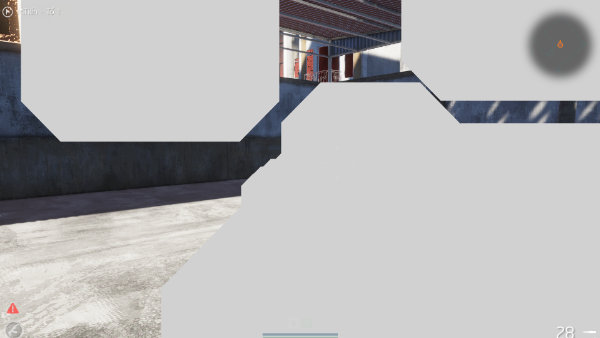
The screen shows grey sections/blocks
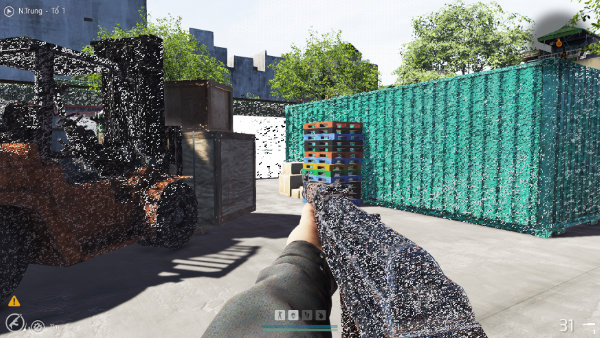
The rendered image has noise
The reason for this is that your system has two graphics cards: one is a dedicated card, such as Nvidia, while the other is an integrated onboard card like Intel UHD Graphics or Intel Iris Xe. Windows may have automatically chosen to use the onboard card for the game instead of the dedicated one.
Solution
First, launch the game and navigate to Options > Graphics. Check the name of the graphics card that the game is using to ensure that it is selecting the correct card.
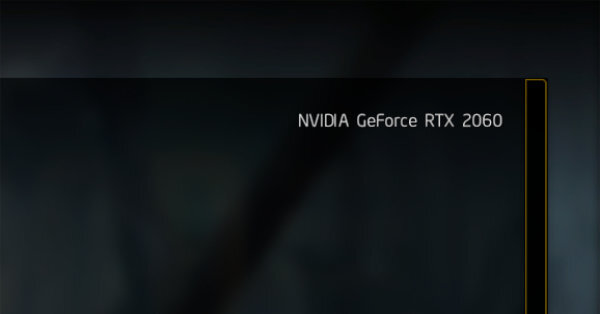
If it is not, go to Windows Graphic Settings then manually add the cscdvmp.exe file of the game by using Add desktop app button → Select correct dedicated card for the file → Restart the game.
For Steam user, the cscdvmp.exe file is located in SteamLibrary\steamapps\common\CSCD Vietnam Mobile Police Demo\cscdvmp.exe
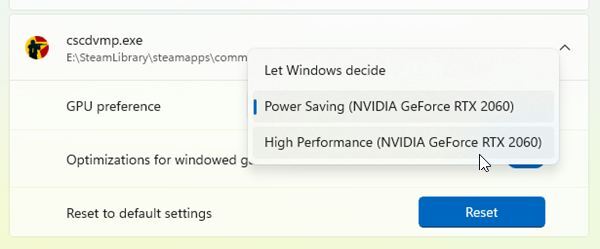
To quickly open Windows Graphic Settings, press Windows key + R to open Run dialogue, enter ms-settings:display-advancedgraphics then click OK
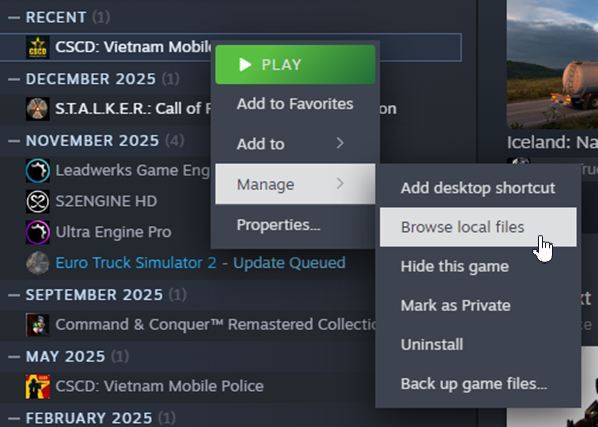
To quickly get the location of cscdvmp.exe file, right click on the game in your Steam library → Manage → Browse local files
Why Intel UHD has rendering artifacts
New drivers can have bugs with some APIs (DirectX/OpenGL/Vulkan) or certain shaders, causing flickering, popping polygons, broken shadows, or distorted textures while the system itself is stable.
Older UHD generations are now in legacy support, so some rendering issues with newer games are known but will not be fully fixed anymore.
The latest generic Intel driver is not always fully compatible with each laptop brand (Dell, Asus, Acer, etc.), which can lead to artifacts or display glitches; in those cases Intel often recommends using the OEM driver instead.
Conflicting settings in Intel Graphics Command Center/Arc Control (extra sharpening, color overdrive, scaling, etc.) can also make edges, outlines, or shadows look jagged or weird in some games.
Why issues persist even with the latest driver
“Latest” does not always mean “most stable” for your specific UHD generation; some new drivers fix one game but introduce rendering bugs in another, which users report quite frequently.
For older CPU/UHD generations, Intel has stated that only critical fixes are provided under the legacy model, so smaller rendering bugs on those GPUs might never be fully addressed.
In some cases, the newest Intel generic driver does not fully match a laptop’s BIOS/platform, and Intel explicitly advises rolling back to the manufacturer’s older OEM driver, which often removes the artifacts.